Take payment with WooCommerce
KN Booking works without any payment. If you want customers to pay when they book, install and activate WooCommerce, then follow these steps.
1. Create a booking product
Go to Products > Add New, give the product a name and price, and tick Booking product in the Product data box. Then set how long the product covers in Booking hours and Booking minutes.
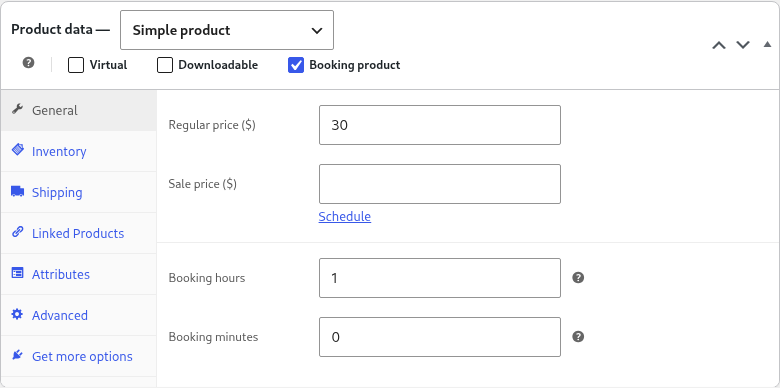
For a variable product, enter the hours and minutes inside each variation. For example, create a 1 hour variation and a 2 hour variation with different prices.
Booking products are hidden from your shop and from search results.
2. Choose your payment settings
Go to KN Booking > Settings > Payment.
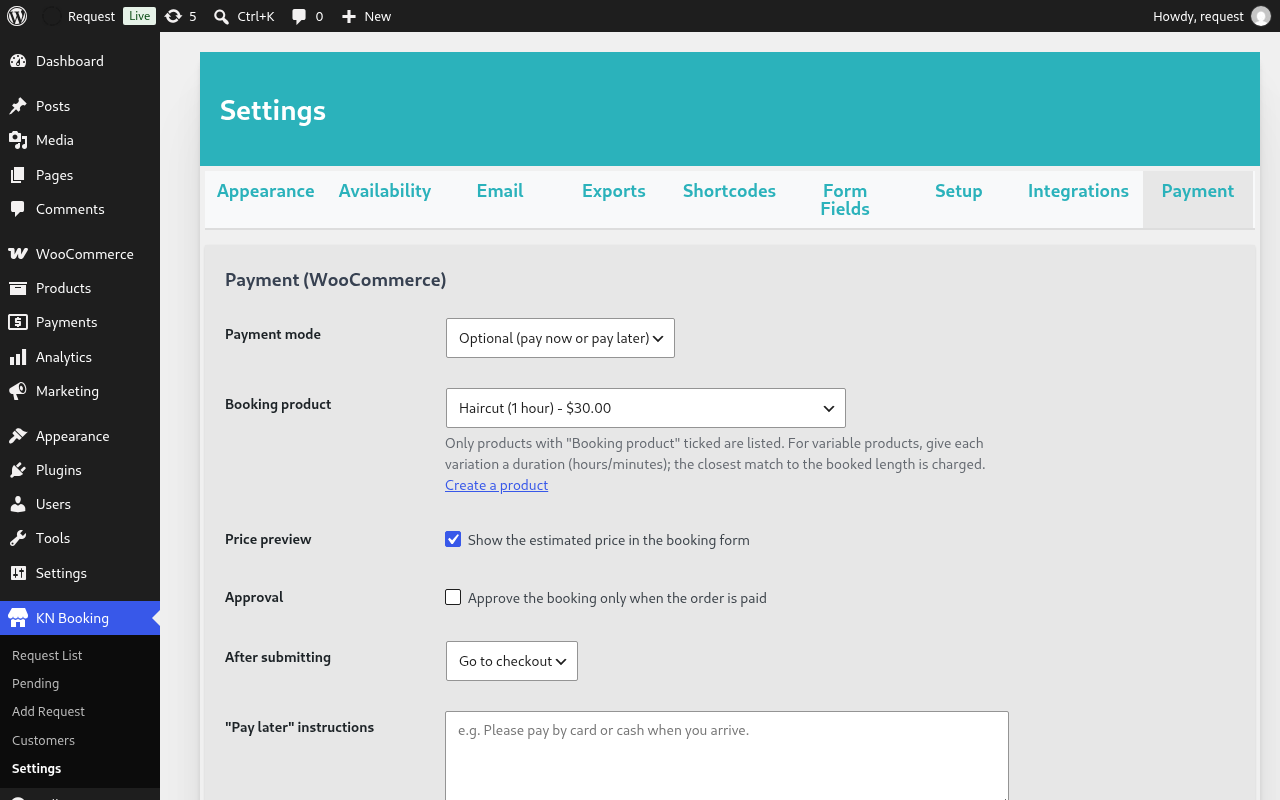
| Setting | What it does |
|---|---|
| Payment mode | Disabled takes free bookings only. Optional lets customers pay now or pay later. Required sends everyone to checkout. |
| Booking product | The product that is charged. Only products marked as a booking product are listed. |
| Price preview | Shows the estimated price in the booking form. |
| Approval | Keep bookings pending until the WooCommerce order is paid. |
| After submitting | Send the customer to the cart or straight to checkout. |
| “Pay later” instructions | Text shown to customers who choose to pay later. |
| Success message | The message shown after a booking is made. |
Click Save Changes.
3. What your customers see
After choosing a date and time, the booking form shows the price and, in Optional mode, the Pay Now and Pay Later choices.
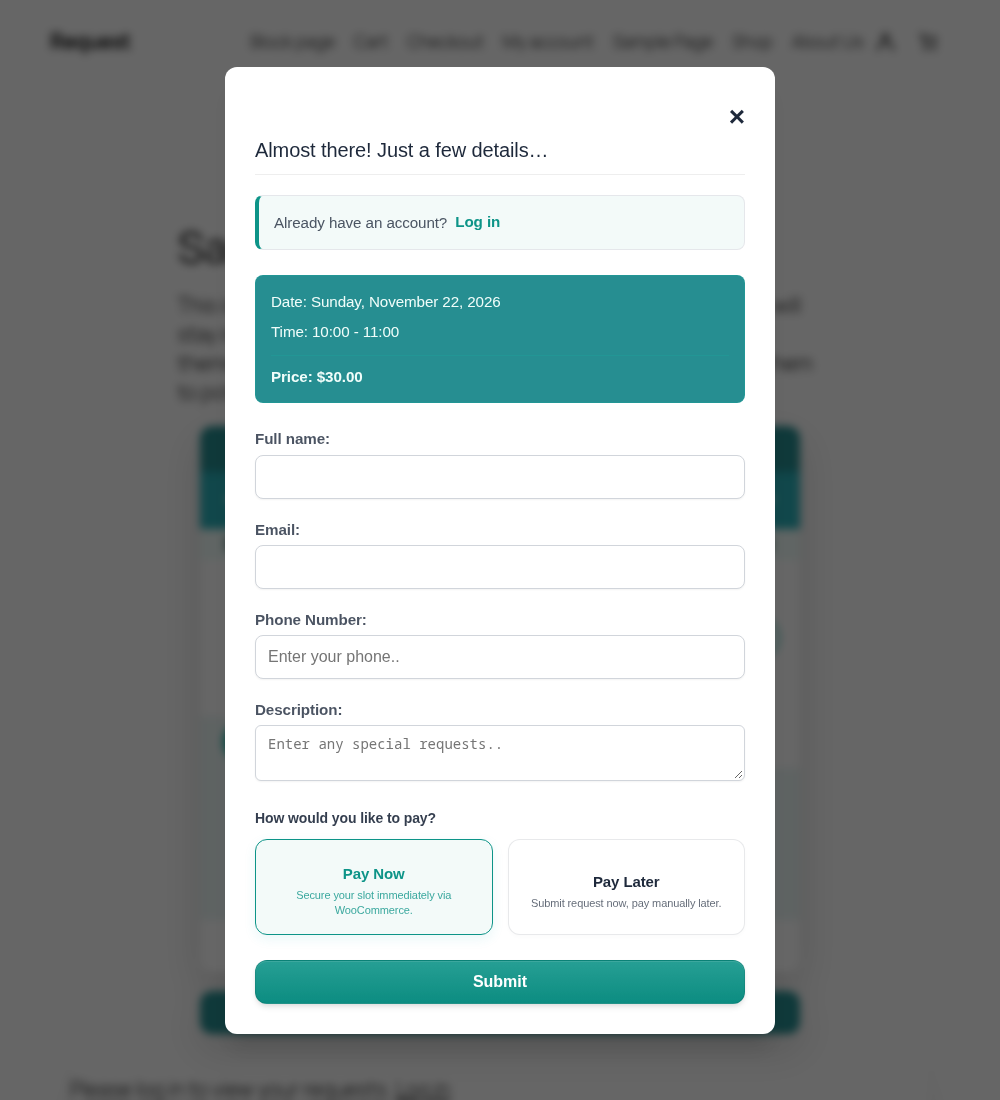
When a customer chooses to pay, they are sent to the WooCommerce checkout. The booking is created when the order is placed, and it is linked to the order.
How the price is chosen
The plugin charges the product, or the variation, whose duration is closest to, and not shorter than, the length the customer booked. With variations of 1 hour and 2 hours, a 90 minute booking is charged the 2 hour price.
Orders and booking status
- If Approve the booking only when the order is paid is ticked, the booking stays pending until the order is processing or completed.
- If the order is cancelled or refunded, the booking is cancelled automatically.